
You are able to save up to 1500 songs into myFirst Fone R1s and up to 500 songs on myFirst Fone R1.
Only mp3 format music will be able to be played on the R1s/R1 smartwatch. To transfer music into the R1s/R1 smartwatch, you will need a Windows-based or Apple macOS based computer. Refer to the video guide below:-
Before transferring, you will need music files and in order to have these files, you may use iTunes to purchase the music and download it into your laptop or purchased some CD and transfer it to your laptop (as this is the only legal way to download the copyright music).
For Windows-based computer users, follow the steps below:
1. Connect myFirst Fone R1s/R1 to your computer via our provided data/charging cable.
2. Select "Media device" on the watch.
3. Open "myFirst Fone R1s/R1" folder on your computer.
4. Drag mp3 files into myFirst Fone R1s/R1 "Music" folder.
5. Remove the cable after the transfer finished.
For Apple macOS based computer user, follow the steps below:
1. Download the "Android File Transfer" on your computer from the below link:
https://www.android.com/filetransfer/
2. After downloading the AndroidFileTransfer.dmg , please install and drag the apps to Applications (refer to the image below).

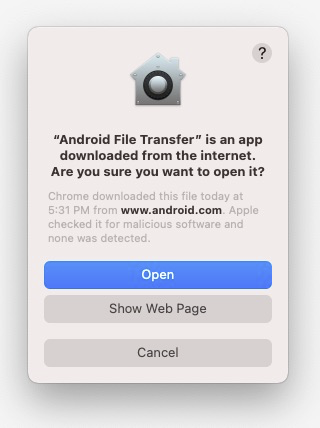
3. After the installation click Open and trusted the app downloaded from www.android.com (refer to the image below).
4. Connect myFirst Fone R1s/R1 to your computer via our provided data/charging cable.
5. Select "Media device" on the watch.
6. Open "Android File Transfer" on your computer (refer to the image below)
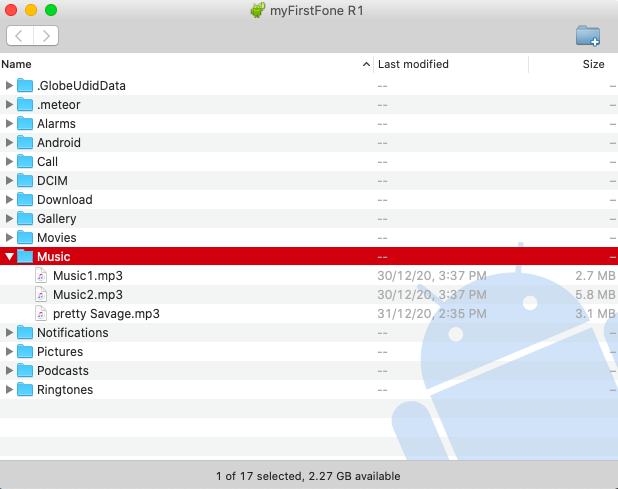
7. Drag mp3 files into the "Android File Transfer" folder.
8. Remove the cable after the transfer finished.